
- Trending Categories
 Data Structure
 Networking
 RDBMS
RDBMS Operating System
 Java
Java MS Excel
 iOS
iOS HTML
HTML CSS
CSS Android
 Python
 C Programming
 C++
C++ C#
C# MongoDB
 MySQL
MySQL Javascript
 PHP
PHP Physics
 Chemistry
 Biology
 Mathematics
 English
 Economics
 Psychology
 Social Studies
 Fashion Studies
 Legal Studies
- Selected Reading
- UPSC IAS Exams Notes
- Developer's Best Practices
- Questions and Answers
- Effective Resume Writing
- HR Interview Questions
- Computer Glossary
- Who is Who
Aligning two buttons vertically in iOS
Auto Layout is one the most important element when it comes to designing an iOS Application. UI development has become a lot more versatile and easier using Auto Layout.
For Aligning two buttons vertically we will be using Auto Layout.
So let’s get started!
Step 1: Open Xcode → New Projecr → Single View Application → Let’s name it “AlignButtons”
Step 2: Open Main.storyboard and add two buttons, name them button 1 and button 2.
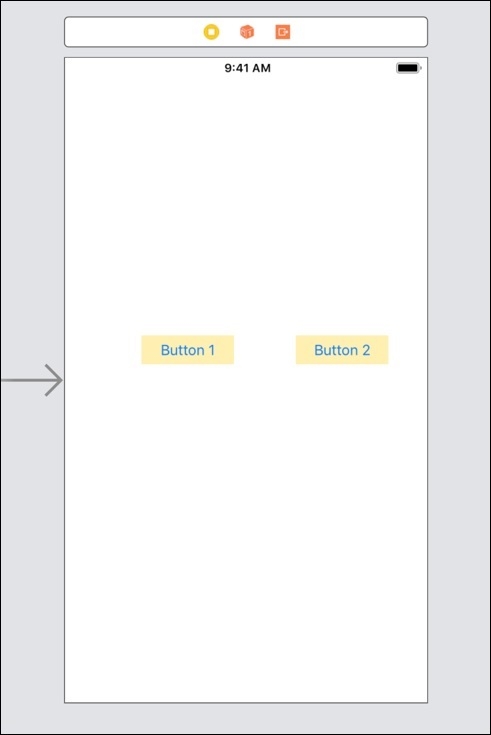
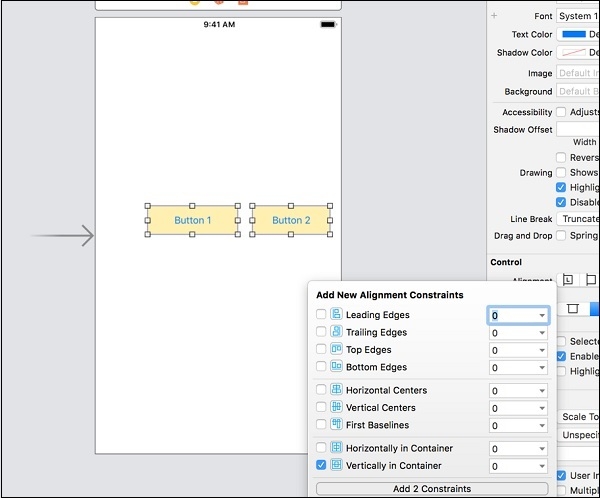
Step 3: Select both the buttons and align them vertically using the Add New Alignment Constraint menu.
Step 4: Select both the buttons tap on Add new constraints and set it to equal widths.
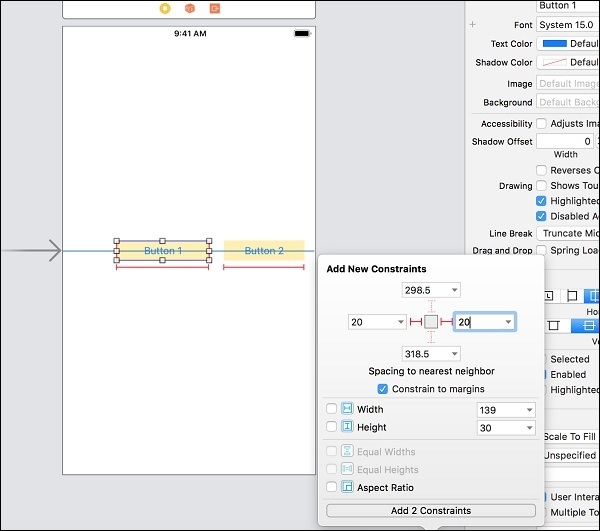
Step 5: Now Select left button tap on Add new constraints again and set leading and trailing spaces to 20 points.
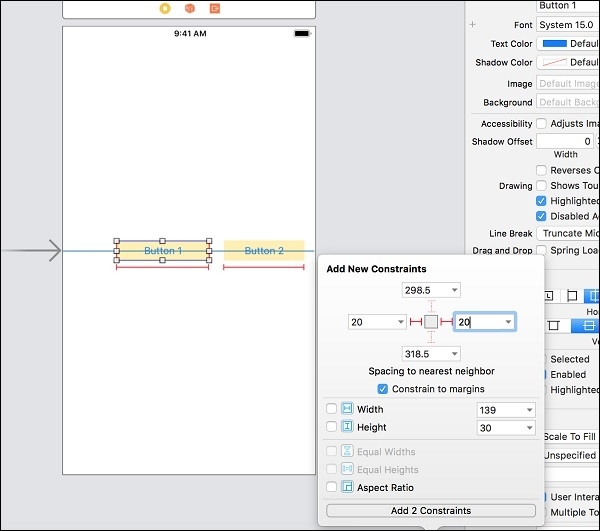
Step 6: Now Select Right button tap on Add new constraints again and set leading and trailing spaces to 20 points.
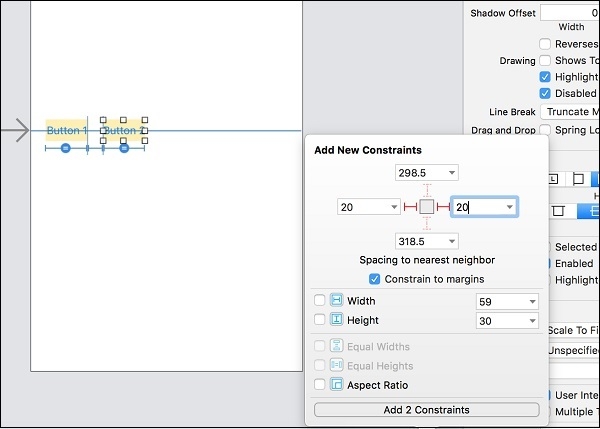
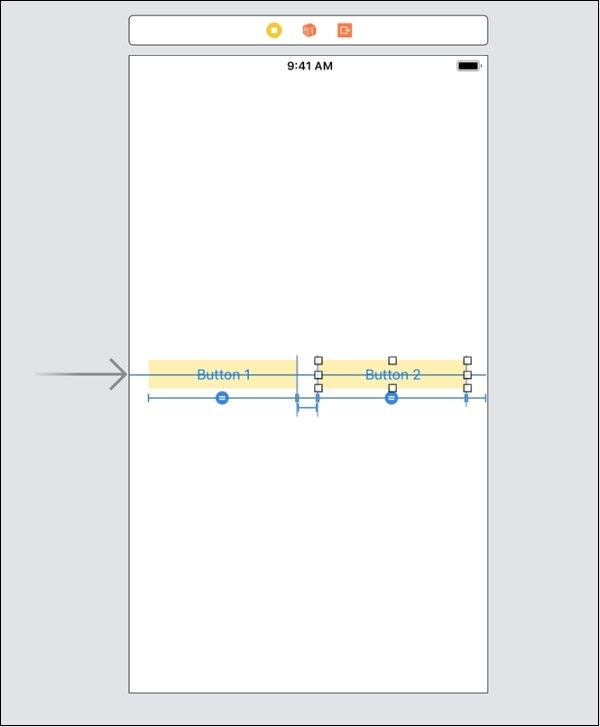
And that’s all as soon as you’ll click on Add 2 Constraints you’ll see you buttons aligned vertically.

864 Views
