
- Trending Categories
 Data Structure
 Networking
 RDBMS
RDBMS Operating System
 Java
Java MS Excel
 iOS
iOS HTML
HTML CSS
CSS Android
 Python
 C Programming
 C++
C++ C#
C# MongoDB
 MySQL
MySQL Javascript
 PHP
PHP Physics
 Chemistry
 Biology
 Mathematics
 English
 Economics
 Psychology
 Social Studies
 Fashion Studies
 Legal Studies
- Selected Reading
- UPSC IAS Exams Notes
- Developer's Best Practices
- Questions and Answers
- Effective Resume Writing
- HR Interview Questions
- Computer Glossary
- Who is Who
How To Change UIView's Border Color And Thickness in Cocoa Touch?
In this article we'll learn how to change a View's border color and thickness.
This can be done in two ways as mentioned below.
Method 1 − Writing the code
Let's suppose we have a view name backView, then to add a border color and thickness we can write
backView.layer.borderWidth = 5 // Or any integer value
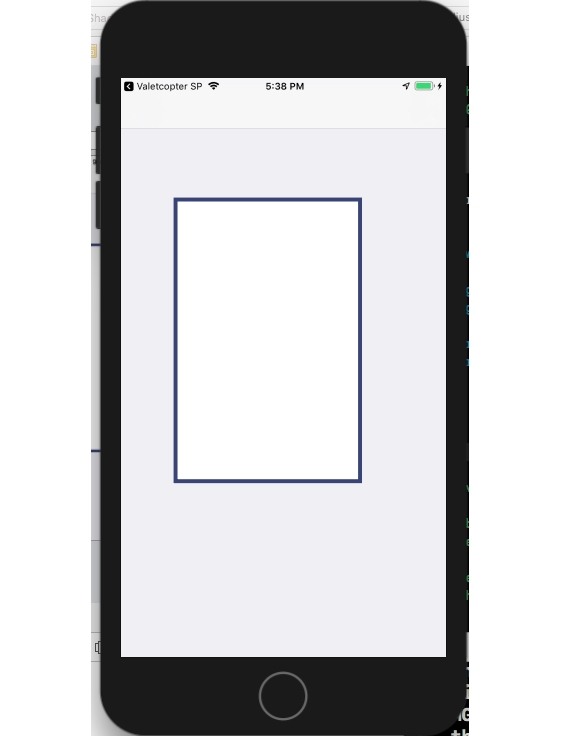
backView.layer.bordercolor = colorLiteral(red: 0.09019608051, green: 0, blue: 0.3019607961, alpha: 1) this code will add a border of 5 width and a dark blue color. Below is the output is produces.
Method 2 − Creating an extension of UIView with designable and inspectable
@IBDesignable
class DesignableView: UIView {
}
extension UIView {
   @IBInspectable
   var borderWidth: CGFloat {
      get {
         return layer.borderWidth
      }
      set {
         layer.borderWidth = newValue
      }
   }
   @IBInspectable
   var borderColor: UIColor? {
     get {
         if let color = layer.borderColor {
            return UIColor(cgColor: color)
         }
         return nil
      }
      set {
         if let color = newValue {
            layer.borderColor = color.cgColor
         }
          else {
            layer.borderColor = nil
         }
      }
   }
}
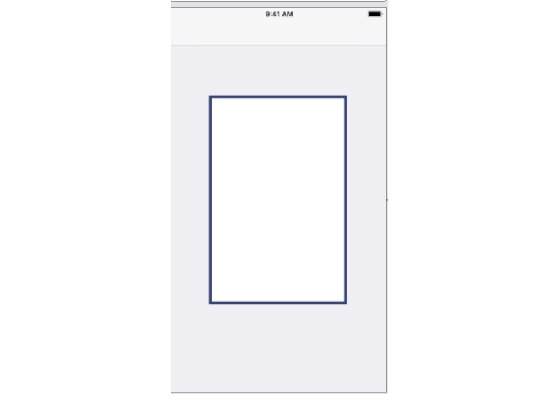
The above will create an editable Storyboard, which will render live changes on the storyboard when edited from the attribute inspector.
Below is the output for method 2 showing how it renders live on storyboard.

Updated on: 2020-06-30T05:13:43+05:30
632 Views

Advertisements