
- Trending Categories
 Data Structure
 Networking
 RDBMS
RDBMS Operating System
 Java
Java MS Excel
 iOS
iOS HTML
HTML CSS
CSS Android
 Python
 C Programming
 C++
C++ C#
C# MongoDB
 MySQL
MySQL Javascript
 PHP
PHP Physics
 Chemistry
 Biology
 Mathematics
 English
 Economics
 Psychology
 Social Studies
 Fashion Studies
 Legal Studies
- Selected Reading
- UPSC IAS Exams Notes
- Developer's Best Practices
- Questions and Answers
- Effective Resume Writing
- HR Interview Questions
- Computer Glossary
- Who is Who
How to dismount the ISO file using PowerShell?
To dismount the ISO file on the Windows Server using PowerShell, we need to use the Dismount−DiskImage command. When you use this command, you need to use the same path used for mounting the disk image.
In this example, we have a disk mounted on E: on the local server, that we can check using the windows explorer or cmdlets.
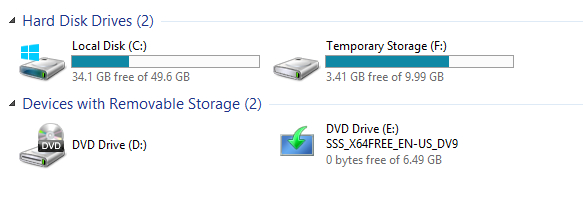
We have the source ISO image stored at F: drive, so we can dismount the image using the below command.
ISO Disk will be mounted from the E:
To dismount the disk on the remote server, we can use the CIMSession command.
$sess = New−CimSession −ComputerName Labmachine2k12
Dismount−DiskImage −ImagePath F:\Windows_Server_2016_Datacenter.ISO −
CimSession $sess
In the above example, the ISO file will be dismounted from the LabMachine2k12 server, and that ImagePath should exist on the remote machine.

Updated on: 2021-01-25T07:25:55+05:30
4K+ Views

Advertisements