
- Trending Categories
 Data Structure
 Networking
 RDBMS
RDBMS Operating System
 Java
Java MS Excel
 iOS
iOS HTML
HTML CSS
CSS Android
 Python
 C Programming
 C++
C++ C#
C# MongoDB
 MySQL
MySQL Javascript
 PHP
PHP Physics
 Chemistry
 Biology
 Mathematics
 English
 Economics
 Psychology
 Social Studies
 Fashion Studies
 Legal Studies
- Selected Reading
- UPSC IAS Exams Notes
- Developer's Best Practices
- Questions and Answers
- Effective Resume Writing
- HR Interview Questions
- Computer Glossary
- Who is Who
How to Encrypt/Decrypt Selected Cells in Excel?
Handling sensitive data safely is essential, and Excel has built-in tools that let you password-protect individual cells in your spreadsheets. You can protect sensitive data from unauthorised access or unintentional changes by encrypting and decrypting specific cells. This article will take you step-by-step through the process of encrypting and decrypting specific Excel cells. This manual will arm you with the knowledge to maintain the security of your information, whether you need to safeguard bank records, personal data, or any other sensitive data.
Make sure you have a fundamental understanding of Microsoft Excel's features before we start. It will be helpful if you are comfortable using the Excel interface and working with cells, rows, and columns. Make sure that Microsoft Excel is installed on your computer and that it supports the encryption features. Let's begin learning how to encrypt and decrypt specific Excel cells!
Encrypt/Decrypt Selected Cells
Here we will first create a VBA module, then run it to select the range of cells, password, and encrypt or decrypt to complete the task. So let us see a simple process to know how you can encrypt or decrypt selected cells in Excel.
Step 1
Consider an Excel sheet where you have list of items.
First, right-click on the sheet name and select View code to open the VBA application.
Right-click > View Code.
Step 2
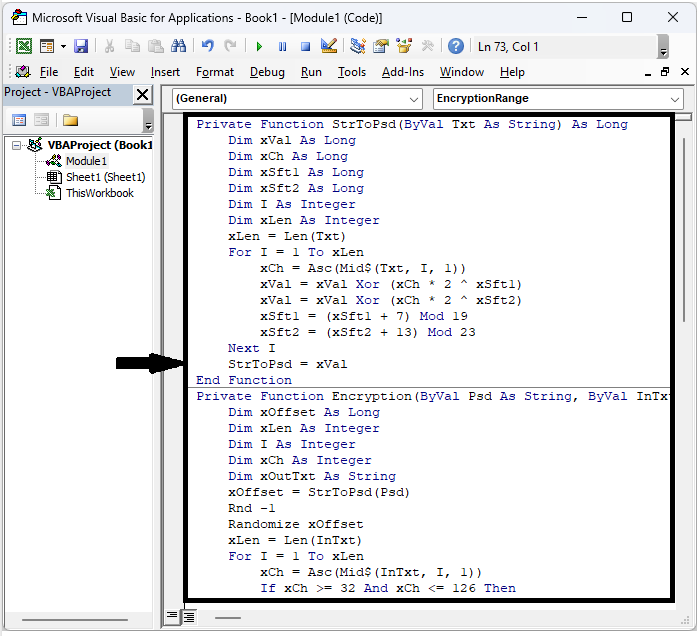
Then click on Insert and select Module, then copy the below code into the text box.
Insert > Module > Copy.
Code
Private Function StrToPsd(ByVal Txt As String) As Long
   Dim xVal As Long
   Dim xCh As Long
   Dim xSft1 As Long
   Dim xSft2 As Long
   Dim I As Integer
   Dim xLen As Integer
   xLen = Len(Txt)
   For I = 1 To xLen
      xCh = Asc(Mid$(Txt, I, 1))
      xVal = xVal Xor (xCh * 2 ^ xSft1)
      xVal = xVal Xor (xCh * 2 ^ xSft2)
      xSft1 = (xSft1 + 7) Mod 19
      xSft2 = (xSft2 + 13) Mod 23
   Next I
   StrToPsd = xVal
End Function
Private Function Encryption(ByVal Psd As String, ByVal InTxt As String, Optional ByVal Enc As Boolean = True) As String
   Dim xOffset As Long
   Dim xLen As Integer
   Dim I As Integer
   Dim xCh As Integer
   Dim xOutTxt As String
   xOffset = StrToPsd(Psd)
   Rnd -1
   Randomize xOffset
   xLen = Len(InTxt)
   For I = 1 To xLen
      xCh = Asc(Mid$(InTxt, I, 1))
      If xCh >= 32 And xCh <= 126 Then
         xCh = xCh - 32
         xOffset = Int((96) * Rnd)
         If Enc Then
            xCh = ((xCh + xOffset) Mod 95)
         Else
            xCh = ((xCh - xOffset) Mod 95)
            If xCh < 0 Then xCh = xCh + 95
         End If
         xCh = xCh + 32
         xOutTxt = xOutTxt & Chr$(xCh)
      End If
   Next I
   Encryption = xOutTxt
End Function
Sub EncryptionRange()
   Dim xRg As Range
   Dim xPsd As String
   Dim xTxt As String
   Dim xEnc As Boolean
   Dim xRet As Variant
   Dim xCell As Range
   On Error Resume Next
   xTxt = ActiveWindow.RangeSelection.Address
   Set xRg = Application.InputBox("Select a range:", "Encrypt Or Decrypt", xTxt, , , , , 8)
   Set xRg = Application.Intersect(xRg, xRg.Worksheet.UsedRange)
   If xRg Is Nothing Then Exit Sub
   xPsd = InputBox("Enter password:", " Encrypt Or Decrypt ")
   If xPsd = "" Then
      MsgBox "Password cannot be empty", , " Encrypt Or Decrypt "
      Exit Sub
   End If
   xRet = Application.InputBox("Type 1 to encrypt cell(s);Type 2 to decrypt cell(s)", " Encrypt Or Decrypt ", , , , , , 1)
   If TypeName(xRet) = "Boolean" Then Exit Sub
   If xRet > 0 Then
      xEnc = (xRet Mod 2 = 1)
      For Each xCell In xRg
         If xCell.Value <> "" Then
            xCell.Value = Encryption(xPsd, xCell.Value, xEnc)
         End If
      Next
   End If
End Sub
Step 3
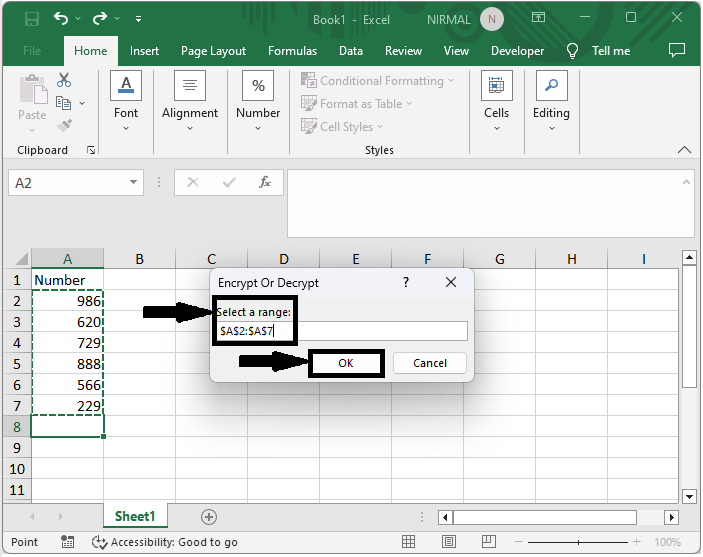
Then click F5 to run the module. Then select the range of cells you want to encrypt or decrypt and click OK.
F5 > Select Cells > Ok.
Step 4
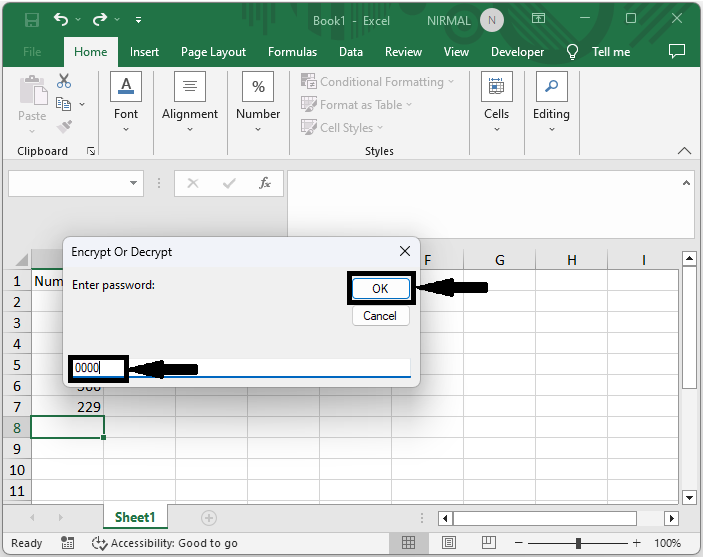
Then give a password and click OK.
Password > Ok.
Step 5
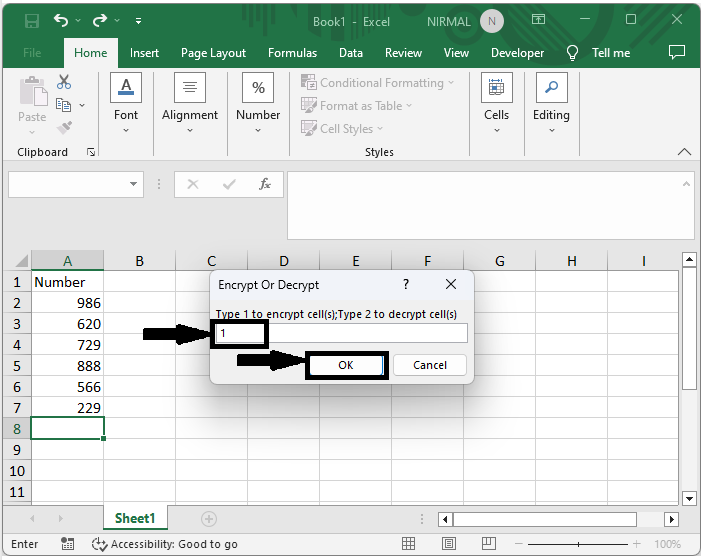
Then finally, select whether to encrypt or decrypt and click OK.
Select Encrypt or Decrypt > Ok.
This is how you can encrypt or decrypt selected cells in Excel.
Conclusion
In this tutorial, we have used a simple example to demonstrate how you can encrypt or decrypt selected cells in Excel to highlight a particular set of data.

7K+ Views
