
- Trending Categories
 Data Structure
 Networking
 RDBMS
RDBMS Operating System
 Java
Java MS Excel
 iOS
iOS HTML
HTML CSS
CSS Android
 Python
 C Programming
 C++
C++ C#
C# MongoDB
 MySQL
MySQL Javascript
 PHP
PHP Physics
 Chemistry
 Biology
 Mathematics
 English
 Economics
 Psychology
 Social Studies
 Fashion Studies
 Legal Studies
- Selected Reading
- UPSC IAS Exams Notes
- Developer's Best Practices
- Questions and Answers
- Effective Resume Writing
- HR Interview Questions
- Computer Glossary
- Who is Who
How to Extract First or Last or Nth Word from Text String in Excel
Excel is a robust data management and analysis tool, and the ability to extract particular words from a text string can be quite helpful in a variety of situations. Knowing how to extract certain words from a text string can be incredibly useful when working with enormous datasets, assessing survey results, or processing text-based data. It will also make your data manipulation activities go much faster.
You will be well-equipped to manage text-based data after completing this course since you will have a thorough understanding of how to extract particular terms from a text string in Excel. So, let's get started and discover the potential of Excel's word extraction from text strings!
Extract First / Last Word From Text String
Here we will first use a formula for any one of the results, then use the autofill handle to complete the task. So let us see a simple process to know how you can extract the first and last word from a text string in Excel.
Step 1
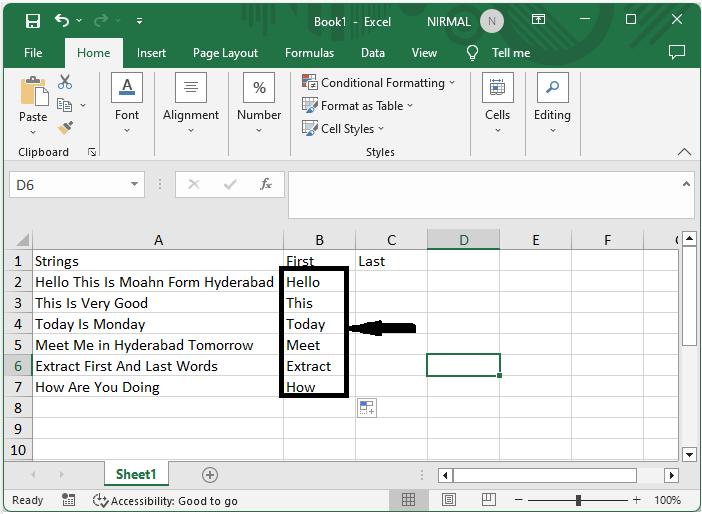
Consider an Excel sheet where you have a list of text strings.
First, to extract the first words, click on an empty cell and enter the formula as =IF(ISERR(FIND(" ",A2)),"",LEFT(A2,FIND(" ",A2)-1)) and click enter. Then drag down using the autofill handle.
Empty cell > Formula > Enter > Drag.
Step 2
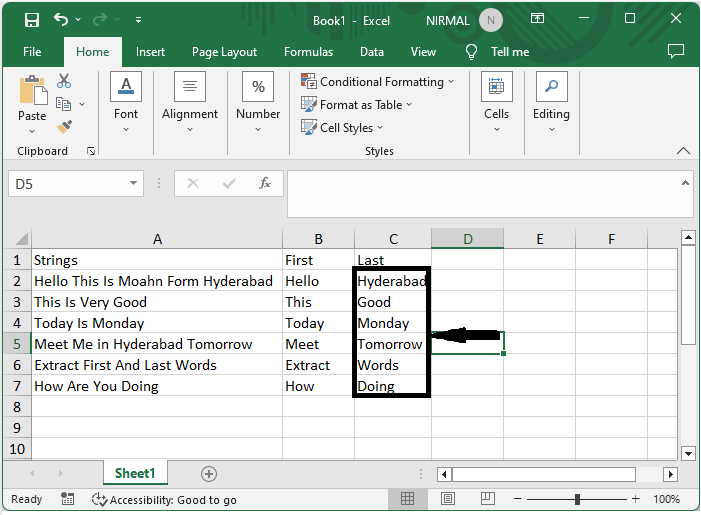
Now to extract the last word, click on an empty cell and enter the formula as =IF(ISERR(FIND("",A2)),"",RIGHT(A2,LEN(A2)-FIND("*",SUBSTITUTE(A2," ","*",LEN(A2)-LEN(SUBSTITUTE(A2," ","")))))) and click enter. Then use the auto-fill handle to get all the values.
Empty cell > Formula > Enter > Drag.
Extract Nth Word From Text String
Here we will first create a user-defined formula using VBA and then use it to complete the task. So let us see a simple process to learn how you can extract the nth word from a text string in Excel.
Step 1
Consider the same data that we used in the above example.
First, use Alt + F11 to open the VBA application.
Step 2
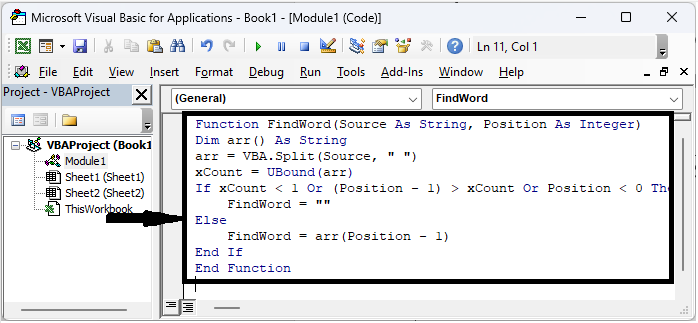
Then click on Insert, select Module, and copy the below code into the text box.
Example
Function FindWord(Source As String, Position As Integer)
Dim arr() As String
arr = VBA.Split(Source, " ")
xCount = UBound(arr)
If xCount < 1 Or (Position - 1) > xCount Or Position < 0 Then
   FindWord = ""
Else
   FindWord = arr(Position - 1)
End If
End Function
Step 3
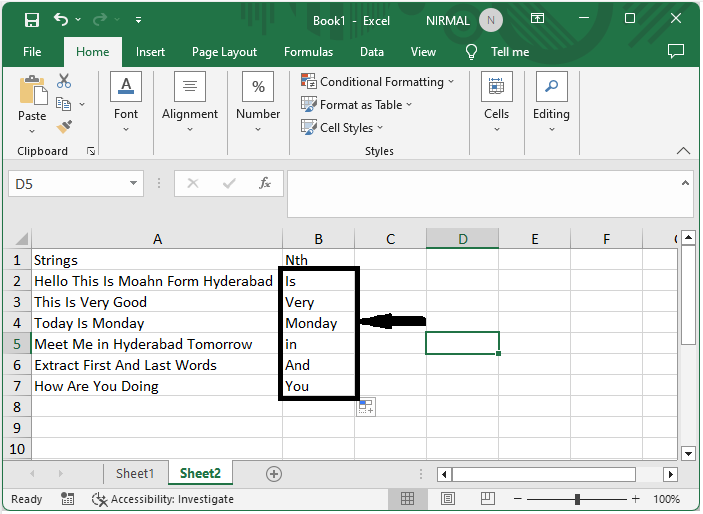
Then click on the empty cell and enter the formula as =FindWord(A2,3) and click enter. Then drag down using the autofill handle to complete the task.
Conclusion
In this tutorial, we have used a simple example to demonstrate how you can extract the first, last, or nth word from a text string in Excel to highlight a particular set of data.

3K+ Views
