
- Trending Categories
 Data Structure
 Networking
 RDBMS
RDBMS Operating System
 Java
Java MS Excel
 iOS
iOS HTML
HTML CSS
CSS Android
 Python
 C Programming
 C++
C++ C#
C# MongoDB
 MySQL
MySQL Javascript
 PHP
PHP Physics
 Chemistry
 Biology
 Mathematics
 English
 Economics
 Psychology
 Social Studies
 Fashion Studies
 Legal Studies
- Selected Reading
- UPSC IAS Exams Notes
- Developer's Best Practices
- Questions and Answers
- Effective Resume Writing
- HR Interview Questions
- Computer Glossary
- Who is Who
How to get the Power state of the Azure VM using PowerShell?
There are the below Power State for the Azure VM.
Starting − The virtual machine is being started.
Running − The virtual machine is currently running
Stopping − The virtual machine is being stopped
Stopped − The virtual machine is currently stopped and but still incur compute charges.
Deallocating − The virtual machine is being deallocated.
Deallocated − The virtual machine is deallocated and released all the resources and does not incur the charges.
- − The Power State of the virtual machine is unknown.
To get the status of the virtual machine, there are two ways.
PS C:\> Get-AzVM -VMName Win2k16VM1 -Status
Output

You can see the PowerState of the VM is deallocated.
The other way to retrieve the status is by adding the -ResourceGroup property along with the -Status.
PS C:\> Get-AzVM -VMName Win2k16VM1 -ResourceGroupName TestVMRG -Status
Output
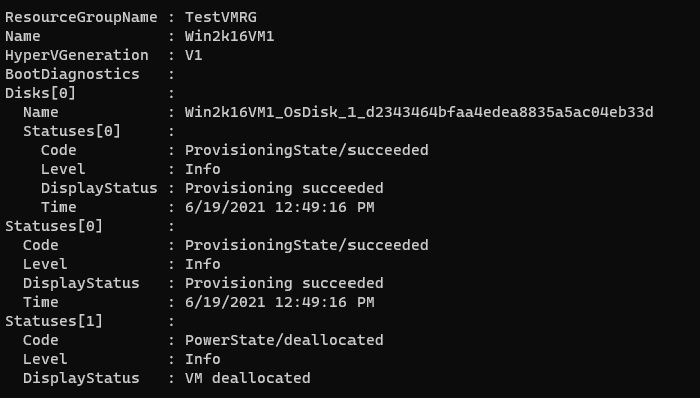
To get the status from the above output, you can modify the command as shown below.
PS C:\> $vm = Get-AzVM -VMName Win2k16VM1 -ResourceGroupName TestVMRG -
Status

PS C:\> $vm.Statuses[1].Code
Output
PowerState/deallocated
To get the output for the Multiple virtual machines in the Particular subscription,
PS C:\> Get-AzVM -Status

2K+ Views
