
- Trending Categories
 Data Structure
 Networking
 RDBMS
RDBMS Operating System
 Java
Java MS Excel
 iOS
iOS HTML
HTML CSS
CSS Android
 Python
 C Programming
 C++
C++ C#
C# MongoDB
 MySQL
MySQL Javascript
 PHP
PHP Physics
 Chemistry
 Biology
 Mathematics
 English
 Economics
 Psychology
 Social Studies
 Fashion Studies
 Legal Studies
- Selected Reading
- UPSC IAS Exams Notes
- Developer's Best Practices
- Questions and Answers
- Effective Resume Writing
- HR Interview Questions
- Computer Glossary
- Who is Who
How to Make CSS Ellipsis Work on a Table Cell?
When dealing with long text in a table, ensuring that it doesn't overflow and ruin your layout is crucial, CSS provides solutions to add ellipses (...) to text that exceeds a cell's width, keeping your UI clean and readable, this article explores two approaches: using the display property and the table-layout property.
Approaches to Make CSS Ellipsis Work on a Table Cell
Using the display Property
The display property allows us to treat the table cell as a block or inline-block element, giving us more control over styling. This approach involves setting a fixed width for the cell, hiding overflow, and using the text-overflow: ellipsis property to display an ellipsis for truncated text.
Steps of the Approach
- Step 1: Change the element's display to block or inline-block, to treat the table cell as a block.
- Step 2: Set a fixed width for the cell.
- Step 3: Use text-overflow: ellipsis to ensure truncated text ends with an ellipsis.
- Step 4: Add overflow: hidden and white-space: nowrap; to manage the text's wrapping and visibility.
Example Code
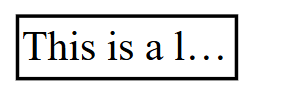
In this example, table cell truncates text and displays an ellipsis for overflowed content.
<!DOCTYPE html>
<html>
  <head>
    <title>Ellipsis Using CSS Display</title>
    <style>
      td {
        display: block;
        border: 2px solid #000;
        width: 80px;
        overflow: hidden;
        text-overflow: ellipsis;
        white-space: nowrap;
      }
    </style>
  </head>
  <body>
    <table>
      <tbody>
        <tr>
          <td>This is a long text that will be truncated</td>
        </tr>
      </tbody>
    </table>
  </body>
</html>
Output
Using the table-layout Property
The table-layout: fixed; property sets a consistent layout for the table columns. By combining it with a fixed width for the table and table cells, we can control how text behaves when it exceeds the defined width, showing ellipses for truncated content.
Steps of the Approach
- Step 1: Apply table-layout: fixed; to the element.
- Step 2: Define a fixed width for the table and cells.
- Step 3: Use text-overflow: ellipsis, overflow: hidden, and white-space: nowrap; for the <td> elements to handle the overflow.
Example Code
<!DOCTYPE html>
<html>
  <head>
    <title>Ellipsis Using Table Layout</title>
    <style>
      table {
        table-layout: fixed;
        width: 100px;
      }
      td {
        border: 2px solid #000;
        width: 100px;
        overflow: hidden;
        text-overflow: ellipsis;
        white-space: nowrap;
      }
    </style>
  </head>
  <body>
    <table>
      <tbody>
        <tr>
          <td>This is another long text example</td>
        </tr>
      </tbody>
    </table>
  </body>
</html>
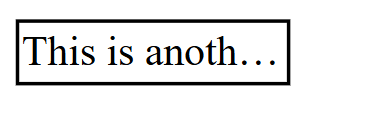
Output

334 Views
