
- Trending Categories
 Data Structure
 Networking
 RDBMS
RDBMS Operating System
 Java
Java MS Excel
 iOS
iOS HTML
HTML CSS
CSS Android
 Python
 C Programming
 C++
C++ C#
C# MongoDB
 MySQL
MySQL Javascript
 PHP
PHP Physics
 Chemistry
 Biology
 Mathematics
 English
 Economics
 Psychology
 Social Studies
 Fashion Studies
 Legal Studies
- Selected Reading
- UPSC IAS Exams Notes
- Developer's Best Practices
- Questions and Answers
- Effective Resume Writing
- HR Interview Questions
- Computer Glossary
- Who is Who
How to Number Rows After Inserting or Deleting Rows Automatically in Excel?
When it comes to organising and analysing data, Excel is a strong tool, and it's common for us to work with huge datasets that need to be updated frequently. It can be hard to remember row numbers or maintain a sequential sequence while adding or removing rows from a spreadsheet. But Excel offers a practical workaround by letting users automatically number rows after adding or removing rows.
These methods will improve data management effectiveness, optimise your workflow, and save time whether you're a novice or seasoned Excel user. In this article, we'll cover two basic scenarios: renumbering rows when old rows are deleted, and automatically renumbering rows after new rows are inserted. We'll talk about providing step-by-step instructions using both VBA macros and built-in Excel functions.
Number Rows After Inserting or Deleting Rows Automatically
Here we will add the VBA code to the sheet to complete the task. So let us see a simple process to know how you can number rows after inserting or deleting rows automatically in Excel.
Step 1
Consider an Excel sheet where you have list of items.
First, right-click on the sheet name and select View code to open the VBA application.
Right Click > View Code.
Step 2
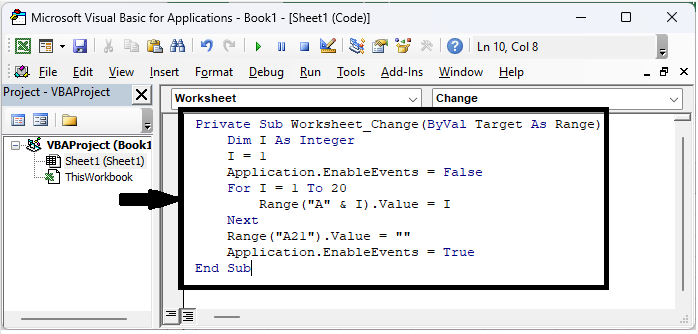
Then copy the below code into the text box.
Code
Private Sub Worksheet_Change(ByVal Target As Range)
   Dim I As Integer
   I = 1
   Application.EnableEvents = False
   For I = 1 To 20
      Range("A" & I).Value = I
   Next
   Range("A21").Value = ""
   Application.EnableEvents = True
End Sub
Step 3
Then close the VBA using Alt + Q. Then enter 1 in the first cell, and 1 to 20 values will be filled automatically.
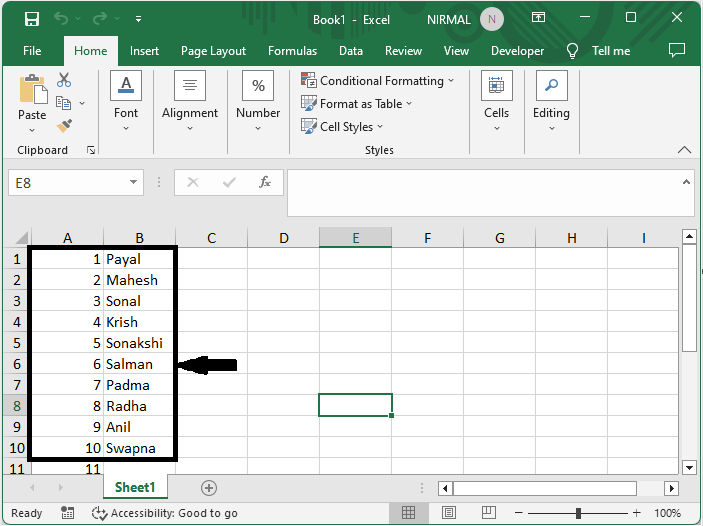
The list will be updated automatically when inserting or deleting items in the range.
Conclusion
In this tutorial, we have used a simple example to demonstrate how you can number rows after inserting or deleting rows automatically in Excel to highlight a particular set of data.

1K+ Views
