
- Trending Categories
 Data Structure
 Networking
 RDBMS
RDBMS Operating System
 Java
Java MS Excel
 iOS
iOS HTML
HTML CSS
CSS Android
 Python
 C Programming
 C++
C++ C#
C# MongoDB
 MySQL
MySQL Javascript
 PHP
PHP Physics
 Chemistry
 Biology
 Mathematics
 English
 Economics
 Psychology
 Social Studies
 Fashion Studies
 Legal Studies
- Selected Reading
- UPSC IAS Exams Notes
- Developer's Best Practices
- Questions and Answers
- Effective Resume Writing
- HR Interview Questions
- Computer Glossary
- Who is Who
How to track the current location (Latitude and Longitude) in an android device using Kotlin?\\n
This example demonstrates how to track the current location (Latitude and Longitude) in an android device using Kotlin.
Step 1 − Create a new project in Android Studio, go to File ⇒New Project and fill all required details to create a new project.
Step 2 − Add the following code to res/layout/activity_main.xml.
<?xml version="1.0" encoding="utf-8"?>
<LinearLayout xmlns:android="http://schemas.android.com/apk/res/android"
   xmlns:tools="http://schemas.android.com/tools"
   android:id="@+id/linearLayout"
   android:layout_width="match_parent"
   android:layout_height="match_parent"
   android:gravity="center"
   android:orientation="vertical"
   tools:context=".MainActivity">
   <TextView
      android:layout_width="wrap_content"
      android:layout_height="wrap_content"
      android:layout_marginStart="10dp"
      android:text="Current Location in Latitude and Longitude:"
      android:textAlignment="center"
      android:textColor="@color/common_google_signin_btn_text_dark_focused"
      android:textIsSelectable="true"
      android:textSize="24sp"
      android:textStyle="bold" />
   <TextView
      android:id="@+id/latitudeText"
      android:layout_width="wrap_content"
      android:layout_height="wrap_content"
      android:layout_marginStart="10dp"
      android:textColor="@color/common_google_signin_btn_text_dark_focused"
      android:textIsSelectable="true"
      android:textSize="24sp"
      android:textStyle="bold" />
   <TextView
      android:id="@+id/longitudeText"
      android:layout_width="wrap_content"
      android:layout_height="wrap_content"
      android:layout_marginStart="10dp"
      android:layout_marginTop="20dp"
      android:textColor="@color/common_google_signin_btn_text_dark_focused"
      android:textIsSelectable="true"
      android:textSize="24sp"
      android:textStyle="bold" />
</LinearLayout>
Step 3 − Add the following code to src/MainActivity.kt
package app.com.kotlipapp
import android.Manifest
import android.content.Intent
import android.content.pm.PackageManager
import android.location.Location
import android.net.Uri
import android.os.Build
import androidx.appcompat.app.AppCompatActivity
import android.os.Bundle
import android.provider.Settings
import android.util.Log
import android.view.View
import android.widget.TextView
import android.widget.Toast
import androidx.core.app.ActivityCompat
import com.google.android.gms.location.FusedLocationProviderClient
import com.google.android.gms.location.LocationServices
class MainActivity : AppCompatActivity() {
   private var fusedLocationClient: FusedLocationProviderClient? = null
   private var lastLocation: Location? = null
   private var latitudeLabel: String? = null
   private var longitudeLabel: String? = null
   private var latitudeText: TextView? = null
   private var longitudeText: TextView? = null
   override fun onCreate(savedInstanceState: Bundle?) {
      super.onCreate(savedInstanceState)
      setContentView(R.layout.activity_main)
      latitudeLabel = resources.getString(R.string.latitudeBabel)
      longitudeLabel = resources.getString(R.string.longitudeBabel)
      latitudeText = findViewById<View>(R.id.latitudeText) as TextView
      longitudeText = findViewById<View>(R.id.longitudeText) as TextView
      fusedLocationClient = LocationServices.getFusedLocationProviderClient(this)
   }
   public override fun onStart() {
      super.onStart()
      if (!checkPermissions()) {
         if (Build.VERSION.SDK_INT >= Build.VERSION_CODES.M) {
            requestPermissions()
         }
      }
      else {
         getLastLocation()
      }
   }
   private fun getLastLocation() {
      fusedLocationClient?.lastLocation!!.addOnCompleteListener(this) { task ->
         if (task.isSuccessful && task.result != null) {
            lastLocation = task.result
            latitudeText!!.text = latitudeLabel + ": " + (lastLocation)!!.latitude
            longitudeText!!.text = longitudeLabel + ": " + (lastLocation)!!.longitude
         }
         else {
            Log.w(TAG, "getLastLocation:exception", task.exception)
            showMessage("No location detected. Make sure location is enabled on the device.")
         }
      }
   }
   private fun showMessage(string: String) {
      val container = findViewById<View>(R.id.linearLayout)
      if (container != null) {
         Toast.makeText(this@MainActivity, string, Toast.LENGTH_LONG).show()
      }
   }
   private fun showSnackbar(
      mainTextStringId: String, actionStringId: String,
      listener: View.OnClickListener
   ) {
      Toast.makeText(this@MainActivity, mainTextStringId, Toast.LENGTH_LONG).show()
   }
   private fun checkPermissions(): Boolean {
      val permissionState = ActivityCompat.checkSelfPermission(
      this,
      Manifest.permission.ACCESS_COARSE_LOCATION
   )
   return permissionState == PackageManager.PERMISSION_GRANTED
}
private fun startLocationPermissionRequest() {
   ActivityCompat.requestPermissions(
      this@MainActivity,
      arrayOf(Manifest.permission.ACCESS_COARSE_LOCATION),
      REQUEST_PERMISSIONS_REQUEST_CODE
   )
}
private fun requestPermissions() {
   val shouldProvideRationale = ActivityCompat.shouldShowRequestPermissionRationale(
      this,
      Manifest.permission.ACCESS_COARSE_LOCATION
   )
   if (shouldProvideRationale) {
      Log.i(TAG, "Displaying permission rationale to provide additional context.")
      showSnackbar("Location permission is needed for core functionality", "Okay",
      View.OnClickListener {
         startLocationPermissionRequest()
      })
   }
   else {
      Log.i(TAG, "Requesting permission")
      startLocationPermissionRequest()
   }
}
override fun onRequestPermissionsResult(
   requestCode: Int, permissions: Array<String>,
   grantResults: IntArray
) {
   Log.i(TAG, "onRequestPermissionResult")
   if (requestCode == REQUEST_PERMISSIONS_REQUEST_CODE) {
      when {
         grantResults.isEmpty() -> {
            // If user interaction was interrupted, the permission request is cancelled and you
            // receive empty arrays.
            Log.i(TAG, "User interaction was cancelled.")
         }
         grantResults[0] == PackageManager.PERMISSION_GRANTED -> {
            // Permission granted.
            getLastLocation()
         }
         else -> {
            showSnackbar("Permission was denied", "Settings",
               View.OnClickListener {
                  // Build intent that displays the App settings screen.
                  val intent = Intent()
                  intent.action = Settings.ACTION_APPLICATION_DETAILS_SETTINGS
                  val uri = Uri.fromParts(
                     "package",
                     Build.DISPLAY, null
                  )
                  intent.data = uri
                  intent.flags = Intent.FLAG_ACTIVITY_NEW_TASK
                  startActivity(intent)
                  }
               )
            }
         }
      }
   }
   companion object {
      private val TAG = "LocationProvider"
      private val REQUEST_PERMISSIONS_REQUEST_CODE = 34
   }
}
Step 4 − Add the following code to res/strings.xml
<resources>
   <string name="app_name">KotlipApp</string>
   <string name="latitudeBabel">Latitude</string>
   <string name="longitudeBabel">Longitude</string>
</resources>
Step 5 − Add the following code to androidManifest.xml
<?xml version="1.0" encoding="utf-8"?>
<manifest xmlns:android="http://schemas.android.com/apk/res/android"
   package="app.com.kotlipapp">
   <uses-permission android:name="android.permission.INTERNET"/>
   <uses-permission android:name="android.permission.ACCESS_COARSE_LOCATION"/>
   <uses-permission android:name="android.permission.ACCESS_FINE_LOCATION"/>
   <application
      android:allowBackup="true"
      android:icon="@mipmap/ic_launcher"
      android:label="@string/app_name"
      android:roundIcon="@mipmap/ic_launcher_round"
      android:supportsRtl="true"
      android:theme="@style/AppTheme>
      <activity android:name=".MainActivity>
         <intent-filter>
            <action android:name="android.intent.action.MAIN" />
            <category android:name="android.intent.category.LAUNCHER" />
         </intent-filter>
      </activity>
   </application>
</manifest>
Let's try to run your application. I assume you have connected your actual Android Mobile device with your computer. To run the app from android studio, open one of your project's activity files and click the Run  icon from the toolbar. Select your mobile device as an option and then check your mobile device which will display your default screen −
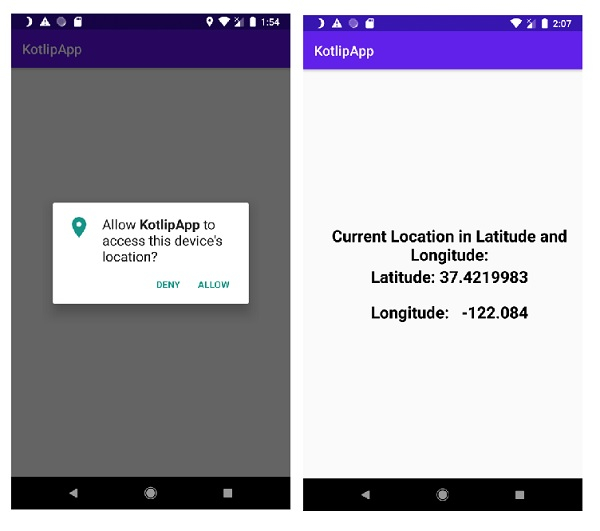
Click here to download the project code.

3K+ Views
